In this segment of my homelab project, I focused on configuring Group Policy Objects (GPOs) to manage various settings across the domain. Group Policy is a powerful tool that allows administrators to enforce rules, security settings, and more across a networked environment. Here’s a detailed look at the GPOs I set up and the policies I enforced.
- Password Policy
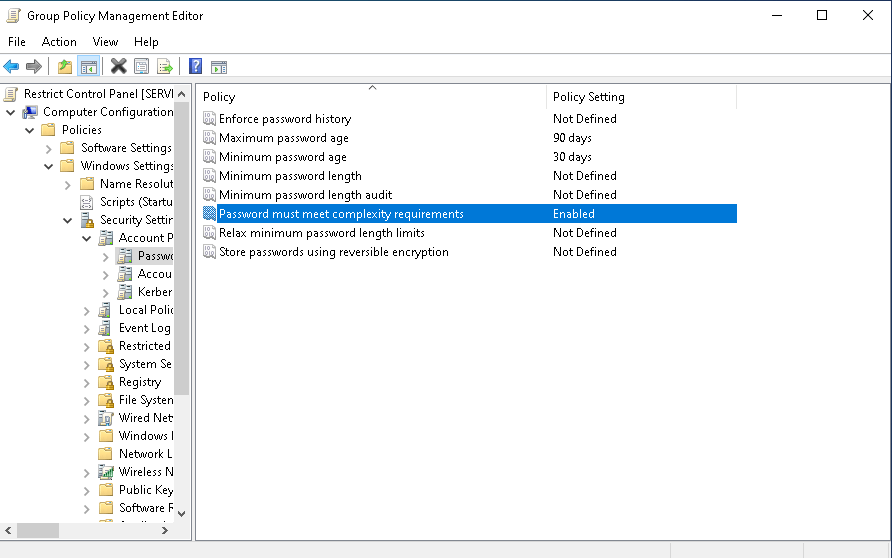
To enhance the security of user accounts, I configured a password policy to enforce strong passwords and set password expiration rules.
Steps:
– Opened Group Policy Management Console on the domain controller.
– Right-clicked on the domain (ad.lab) and created a new GPO named Password Policy.
– Edited the GPO and navigated to:
Computer Configuration > Policies > Windows Settings > Security Settings > Account Policies > Password Policy.
– Set minimum password length to 12 characters.
– Enabled password complexity requirements to enforce the use of uppercase letters, lowercase letters, numbers, and special characters.
– Configured maximum password age to 90 days, with a minimum password age of 30 days to prevent users from immediately changing back to a previous password.
- Drive Mapping Policy
Next, I configured a policy to map network drives for users when they log in. This allows users to easily access shared resources without manual configuration.
Steps:
– Created a new GPO named Drive Mapping.
– Edited the GPO and navigated to:
User Configuration > Preferences > Windows Settings > Drive Maps.
– Created a new mapped drive, setting the location to \servername\folder and mapped it to the E: drive for this example.
- Desktop Wallpaper Policy
To create a uniform environment across all user desktops, I set up a policy that assigns a default desktop wallpaper.
Steps:
– Created a new GPO named Desktop Wallpaper.
– Edited the GPO and navigated to:
User Configuration > Policies > Administrative Templates > Desktop > Desktop.
– Enabled the Desktop Wallpaper setting and set the wallpaper style to Fill.
- Restrict Control Panel Access
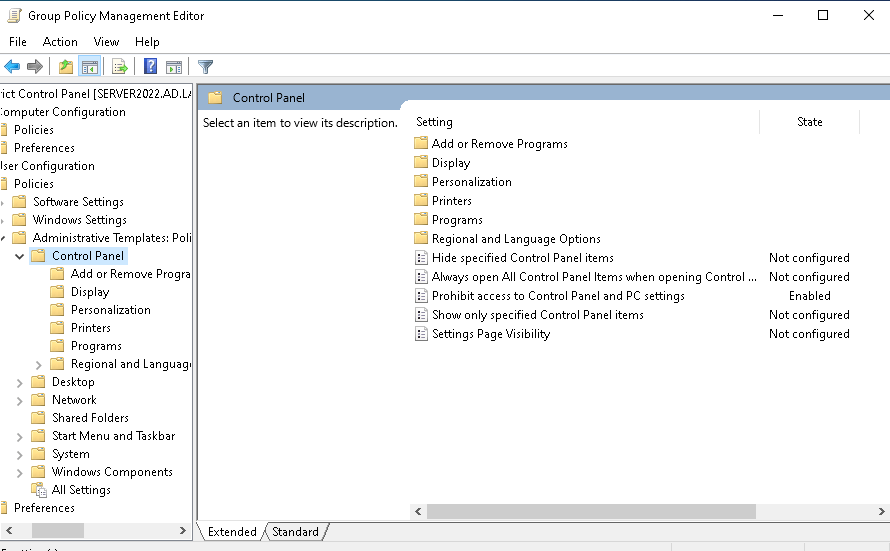
To prevent users from changing system settings, I created a policy that disables access to the Control Panel.
Steps:
– Created a new GPO named Restrict Control Panel.
– Edited the GPO and navigated to:
User Configuration > Policies > Administrative Templates > Control Panel.
– Enabled the policy to Prohibit access to Control Panel.
- Disable USB Storage Devices
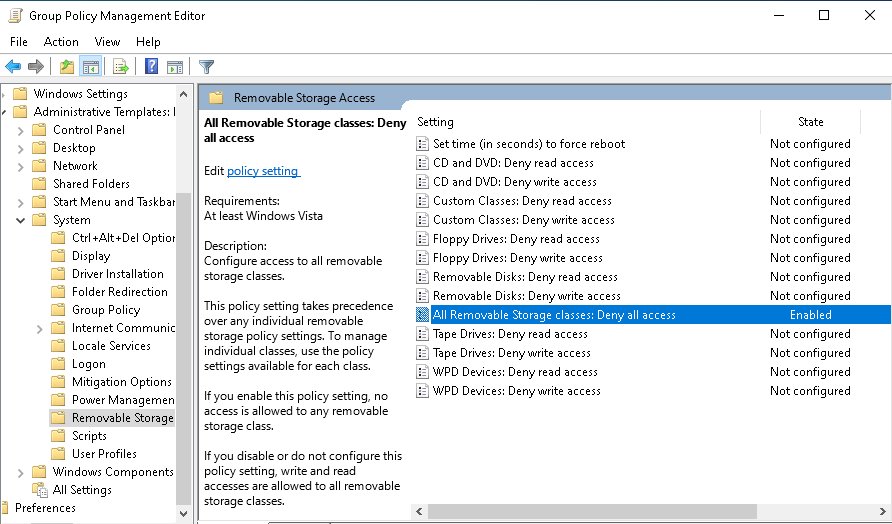
To further enhance security, I implemented a policy to block the use of USB storage devices, reducing the risk of unauthorized data transfers or malware infections.
Steps:
– Created a new GPO named Disable USB Devices.
– Edited the GPO and navigated to:
Computer Configuration > Policies > Administrative Templates > System > Removable Storage Access.
– Enabled the policy to Deny access to all removable storage classes.
- Account Lockout Policy
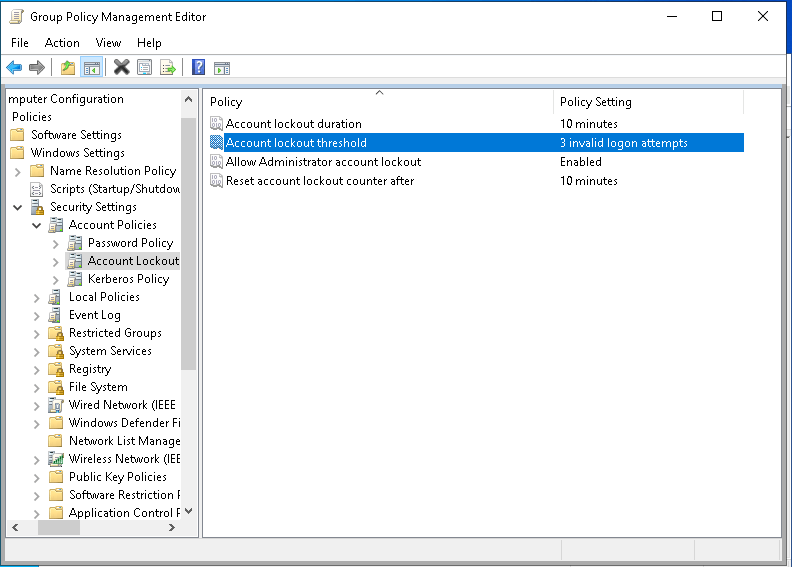
To defend against brute-force attacks, I created an account lockout policy, which locks user accounts after a defined number of invalid login attempts.
Steps:
– Created a new GPO named Account Lockout.
– Edited the GPO and navigated to:
Computer Configuration > Policies > Windows Settings > Security Settings > Account Policies > Account Lockout Policy.
– Set the Account lockout threshold to 3 invalid logon attempts.
Conclusion
By configuring these GPOs, I improved security and standardization across the network. From enforcing password complexity to disabling USB storage devices and limiting access to the Control Panel, these policies help create a secure and manageable environment. Next, I’ll be applying and testing these GPOs to ensure they work as expected and meet the needs of the lab environment.
 My Tech Portfolio
Leave a comment