As part of my ongoing journey to improve my network and system administration skills, I’ve been building a Proxmox homelab, and one of the key steps in this process was setting up Active Directory on Windows Server 2022 within my VLAN 20 environment. In this post, I’ll break down the process, some of the key challenges I encountered, and how everything came together.
Homelab Overview
Before diving into the details, here’s a quick overview of my homelab setup:
- Proxmox VE for virtualization
- pfSense as the firewall and router
- Various VLANs configured for different purposes
- Windows Server 2022 as the server for Active Directory
Why I Chose VLAN 20 for Active Directory
In my lab, I turned off the DHCP server on VLAN 20 to allocate it solely for Windows Server 2022 and Active Directory. This VLAN is specifically designated for managing domain services and providing a controlled environment to experiment with the features and functionality of Active Directory.
Configuring Windows Server 2022 on VLAN 20
- Server Installation
After configuring Proxmox to create a virtual machine, I installed Windows Server 2022 on VLAN 20. During the installation, I added VirtIO drivers, which are necessary for smooth virtualization and better performance. I also assigned the server a static IP (10.10.10.2) to ensure it would have a fixed address within my network. - Server Optimization
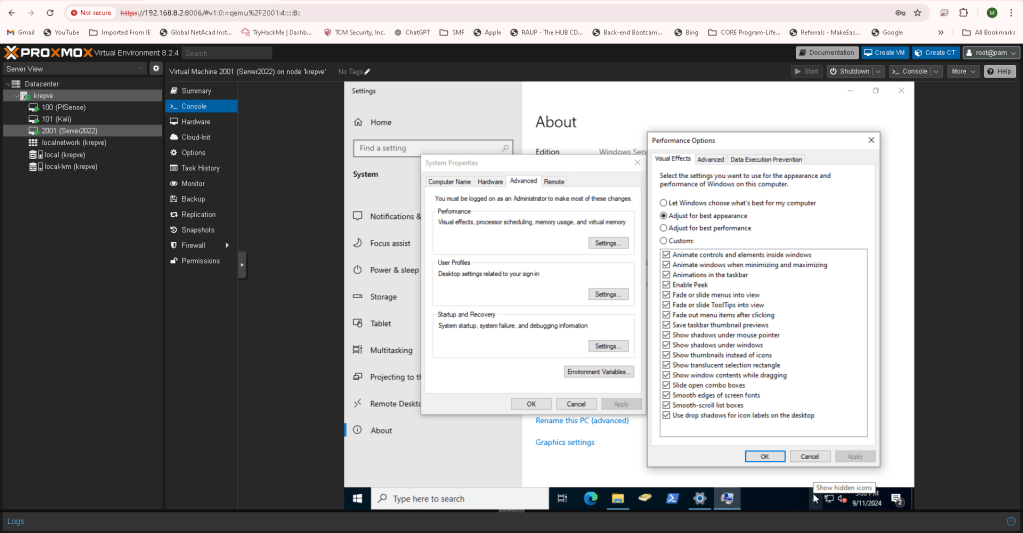
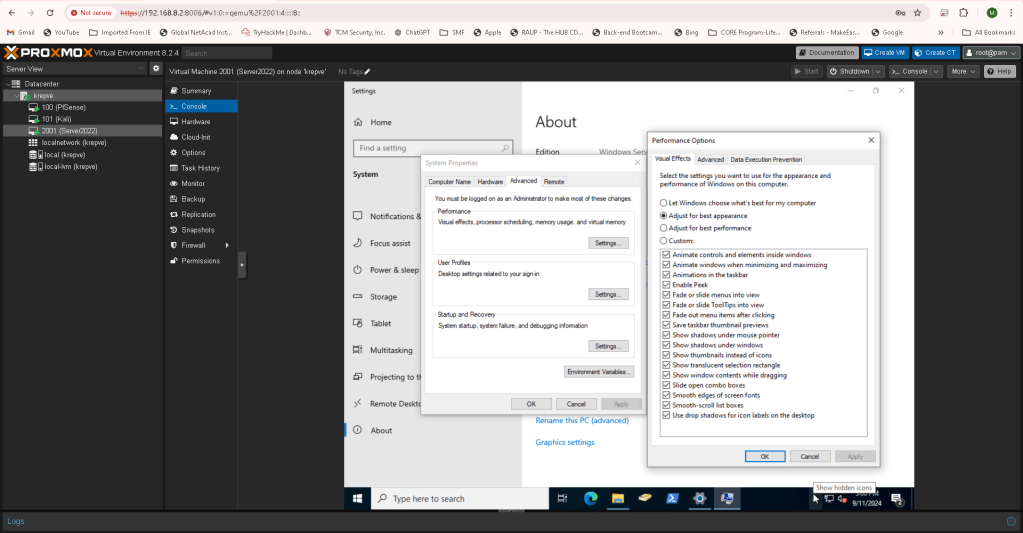
Once installed, I optimized the server for better performance. Since this is a lab setup, performance isn’t a critical issue, but I still wanted to simulate a real-world scenario where system performance plays a role. Additionally, I took a snapshot of the virtual machine, ensuring I could revert back if anything went wrong during the setup.
Active Directory & DNS Setup
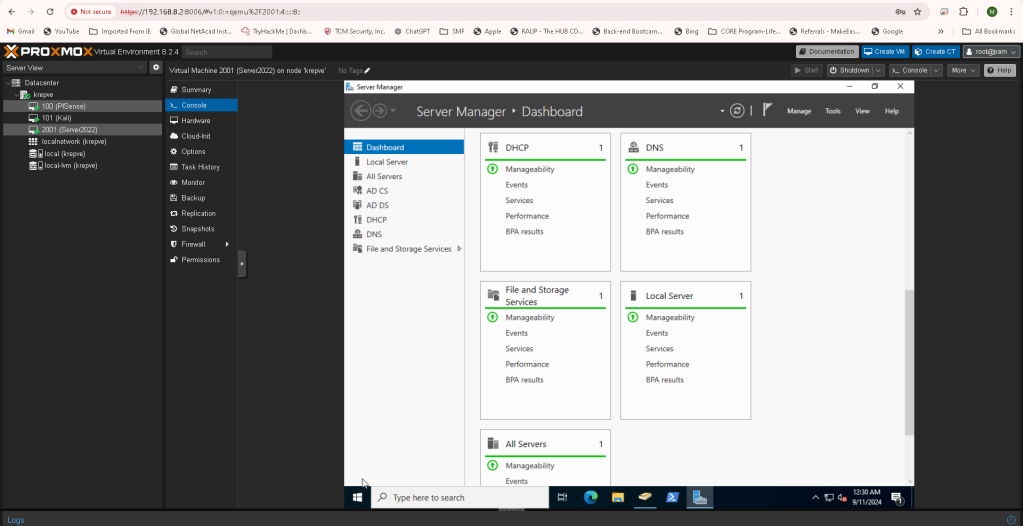
After getting Windows Server 2022 up and running, it was time to install Active Directory Domain Services and configure DNS:
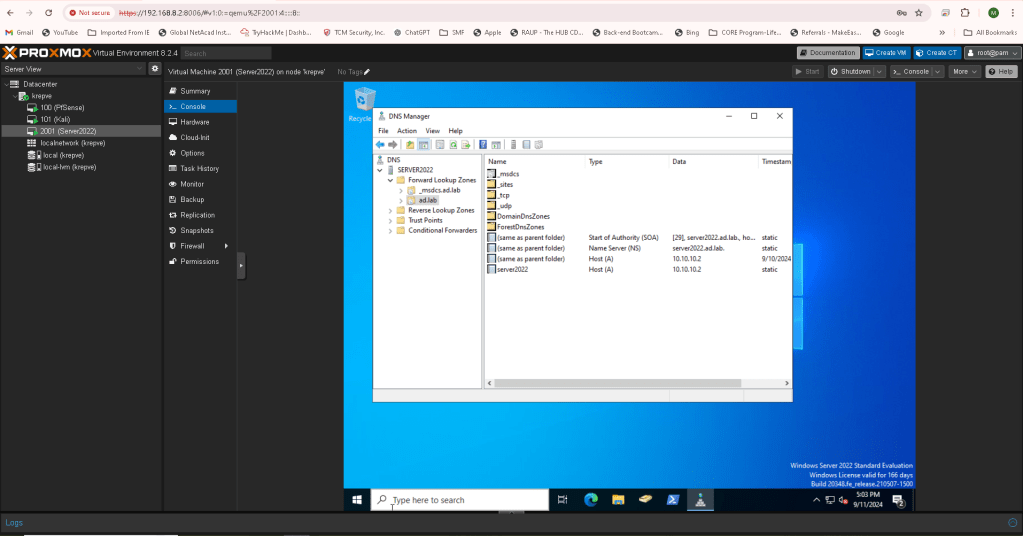
- I promoted the server to a domain controller and created the domain ad.lab.
- I also installed Active Directory Certificate Services to provide secure communication within the domain.
- For DNS, I configured the server to use itself as the DNS resolver while setting a DNS forwarder pointing to my pfSense gateway to resolve external queries that the Windows server doesn’t know.
Configuring DHCP and Scopes
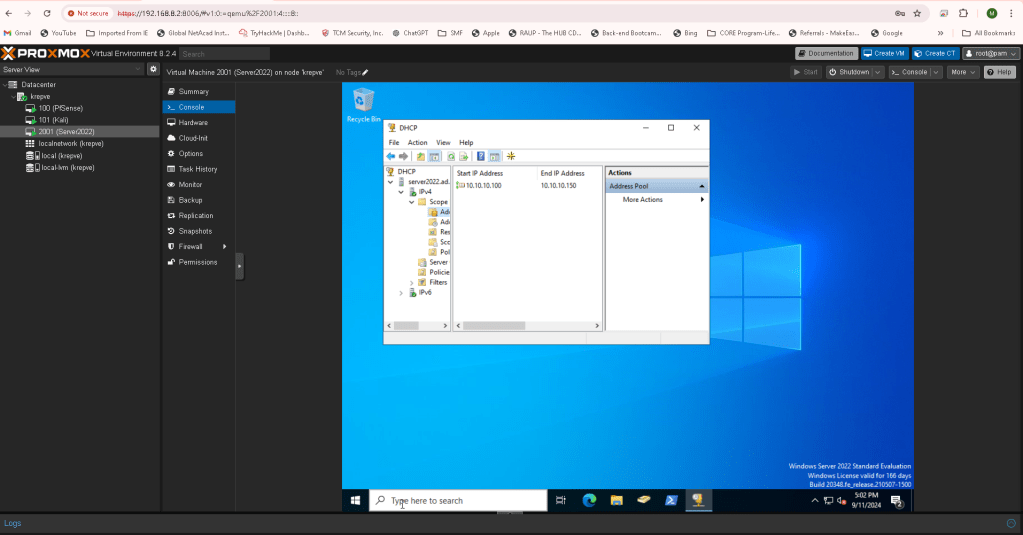
While VLAN 20 no longer used DHCP for general purposes, I installed the DHCP role on Windows Server to manage the address assignments for clients in the domain. I configured the DHCP scopes to ensure proper IP address distribution, and since this is a lab, I set the lease duration to 365 days—much longer than what you’d typically see in a production environment.
Organizational Units & Users
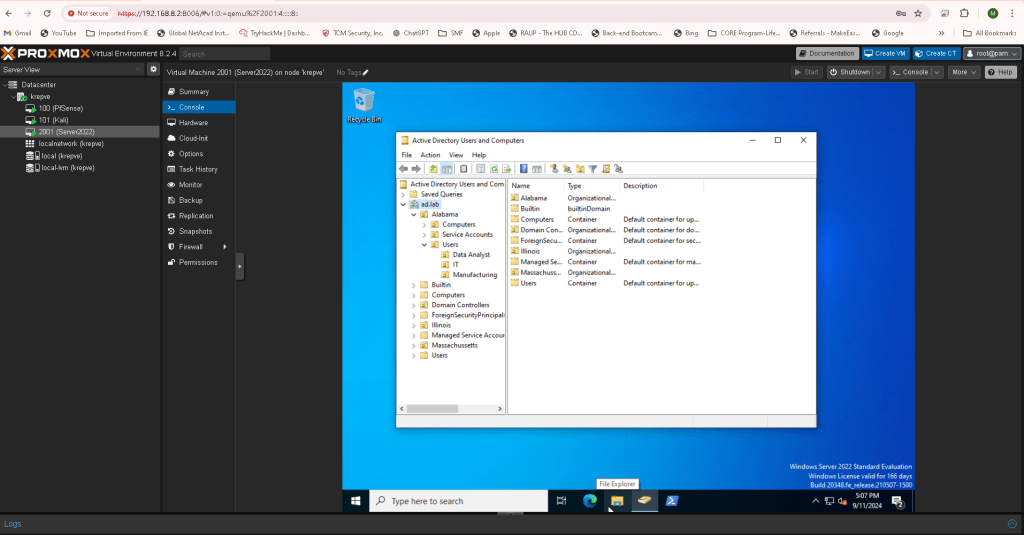
To better organize and manage users within my domain, I created three geographical OUs:
- Alabama
- Illinois
- Massachusetts
Inside the Alabama OU, I further created nested OUs for Computers, Users, and Service Accounts. For the Users OU, I created three additional OUs based on the fields my friends work in:
- Manufacturing
- Data Analytics
- IT
I then added user accounts, assigning each to one of these nested OUs. Each user was named after one of my friends—making the setup a little more personal and realistic.
Patches and Final Steps
Finally, I applied all necessary updates and patches to the server to ensure it was up-to-date. After the updates, I rebooted the server and confirmed that everything was running smoothly.
Lessons Learned
This homelab experiment taught me several important lessons about managing servers and networks in a real-world setting:
- Planning the network architecture is essential. Segmenting the network into VLANs for different services provided better control and security.
- Snapshots are a lifesaver! They allow you to test configurations without fear of permanently damaging your setup.
- Setting up Active Directory involves more than just creating users; it requires a deep understanding of how DNS, DHCP, and certificate services all tie together.
- Using real-life data (like my friends’ names) makes the experience more engaging and practical.
Next Steps
Now that the foundation for my Active Directory setup is complete, I plan to expand my homelab further by adding more services and experimenting with group policies and network security configurations. Stay tuned for updates as I continue building out this network environment!
Conclusion
Building a homelab like this has been an incredible learning experience, and I encourage anyone interested in IT or network administration to dive in and experiment with these technologies. There’s no better way to learn than by doing.
 My Tech Portfolio
Leave a comment